📖 How to export your data from Coinbase
1️⃣ Log in to Coinbase
Go to coinbase.com and sign in to your account.
Go to coinbase.com and sign in to your account.
2️⃣ Access your profile
Click on your profile icon in the top right corner of the page.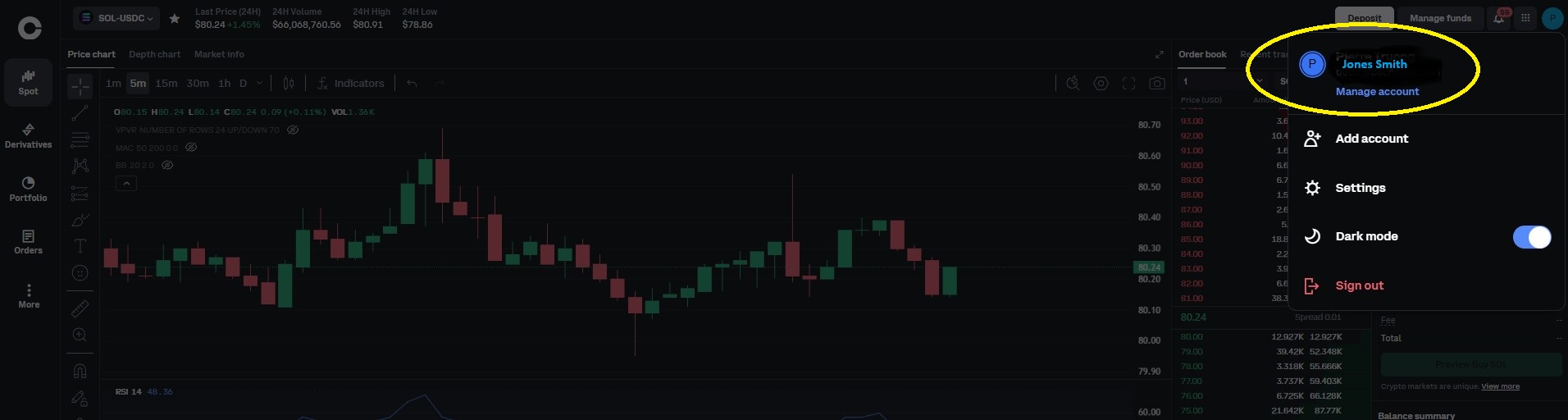
Click on your profile icon in the top right corner of the page.
3️⃣ Check your currency setting
In the Account panel, check the "Currency" field:
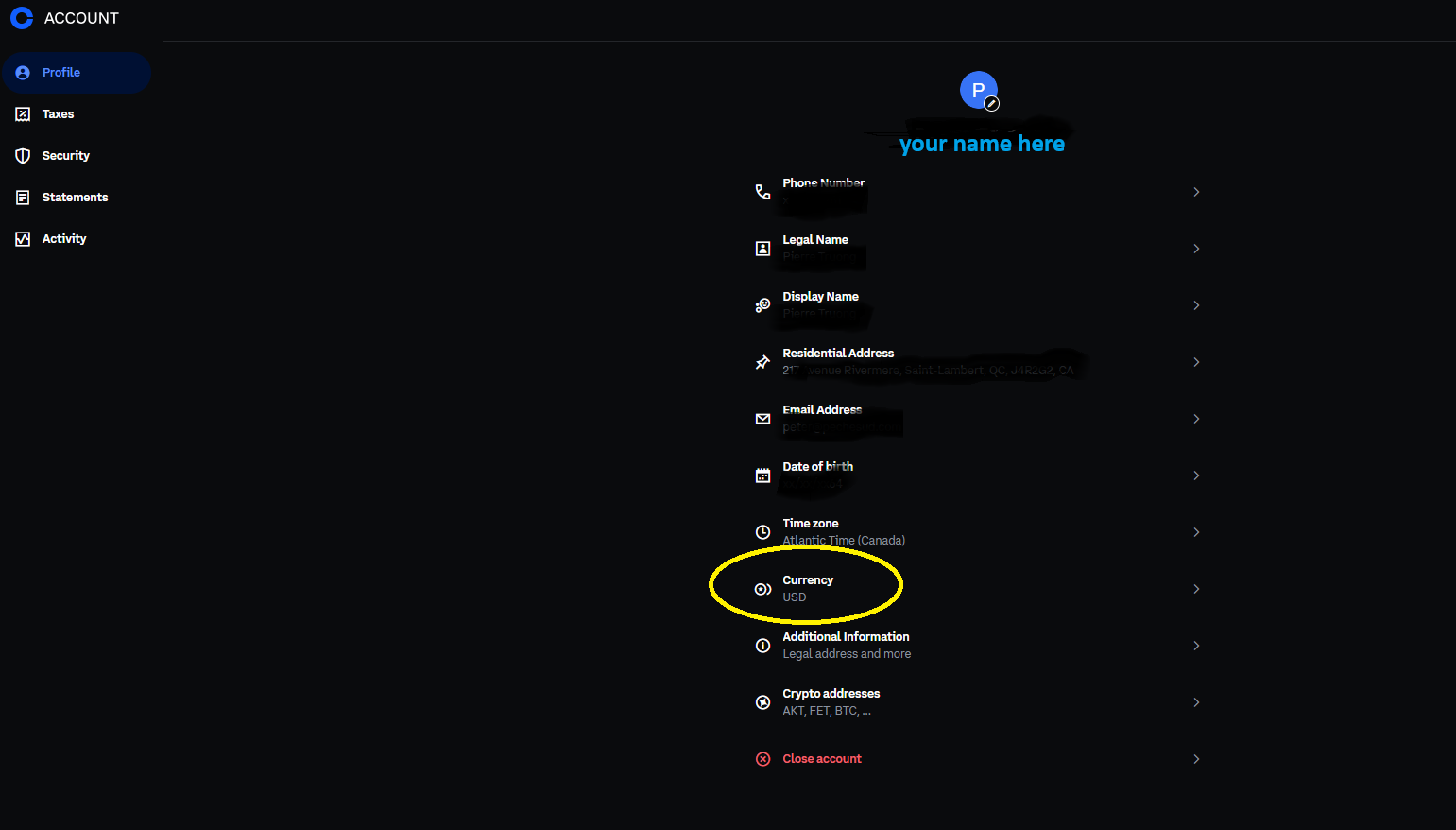
In the Account panel, check the "Currency" field:
- Canadians: Change your currency to CAD
- Americans: Leave the currency set to USD
4️⃣ Go to Statements
In the left menu, click on "Statements".
In the left menu, click on "Statements".
5️⃣ Generate a custom statement
In the "Generate custom statement" panel on the right:
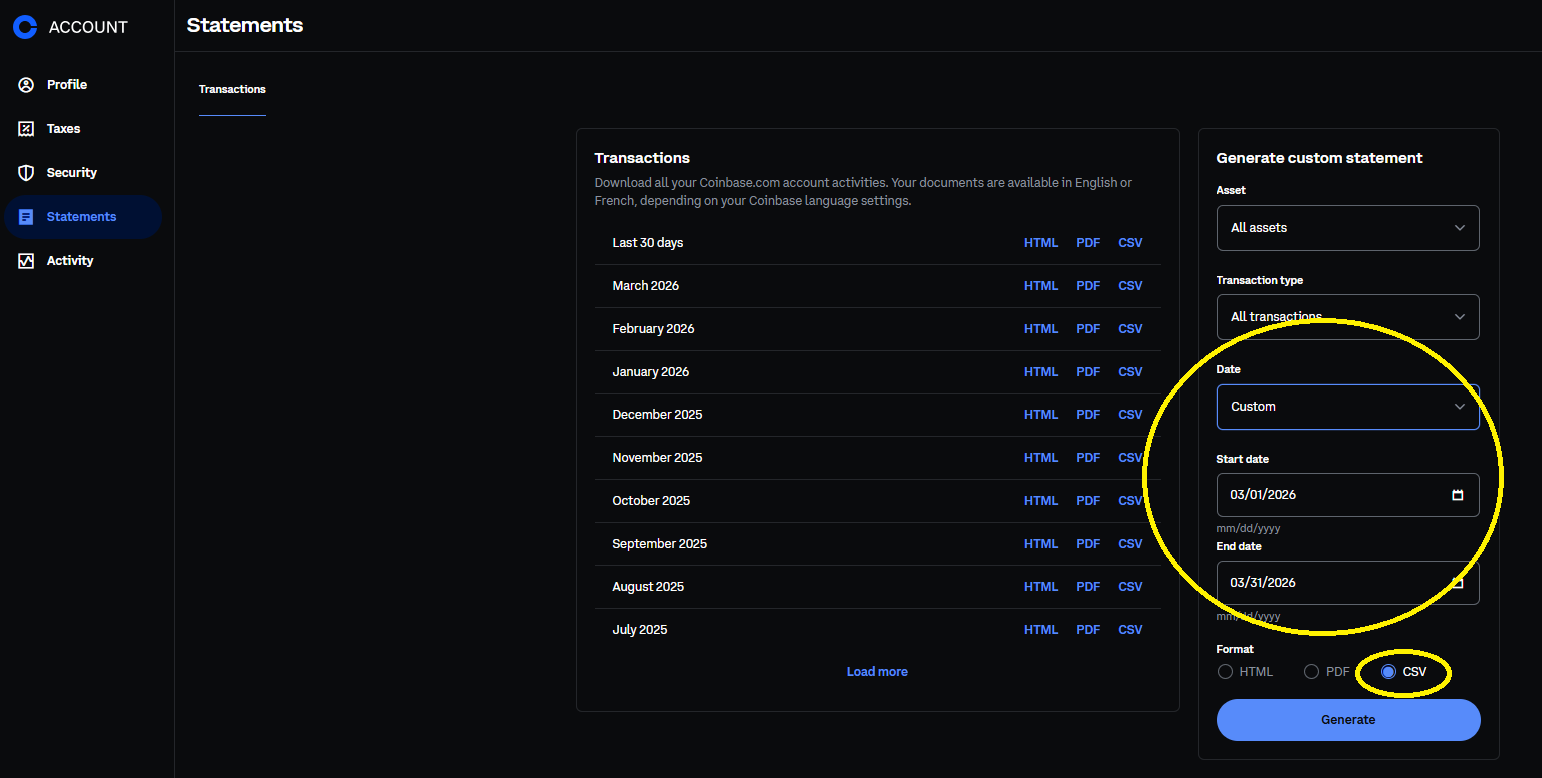
In the "Generate custom statement" panel on the right:
- Asset: All assets
- Transaction type: All transactions
- Date: Choose "Custom"
- Start date: The date of your first transaction on Coinbase
- End date: Today's date
- Format: Select CSV
6️⃣ Retrieve the file
A CSV file will be generated and saved to your computer's "Downloads" folder.
A CSV file will be generated and saved to your computer's "Downloads" folder.
7️⃣ Import into CryptoGains Report
Go to the Tool page, enter your license key, then drag and drop your CSV file.
Your tax report will be generated instantly!
Go to the Tool page, enter your license key, then drag and drop your CSV file.
Your tax report will be generated instantly!
💡 Important: Make sure to select the correct currency (CAD or USD) before generating the CSV. The report uses the currency configured in your Coinbase profile.